
For any business, removing a laptop hard drive is where data security gets real. It’s the first, most crucial step you take before a company laptop is recycled, sold, or retired. This isn't just a technical task; it's a fundamental security measure that physically separates your sensitive data from the hardware itself, setting the stage for secure and verifiable destruction.
Why Drive Removal Is a Critical Security Step for Businesses
As an IT manager, procurement professional, or business owner, you understand that simply wiping a drive and leaving it in a device that’s about to leave your control is an unacceptable business risk. Physically pulling the drive out ensures the data-bearing media is completely isolated. From there, it can be tracked through its own secure chain of custody, a critical component of any IT asset disposal (ITAD) program.
This single action solves several major business challenges at once:
- Data Security: It’s a guarantee. Confidential company files, customer information, and intellectual property are no longer on that retired laptop.
- Regulatory Compliance: This is a foundational step for meeting data protection laws like HIPAA, SOX, and the FTC Disposal Rule. These regulations demand you protect sensitive data through its entire lifecycle.
- Risk Mitigation: Pulling the drive physically stops data breaches that could happen if a device is lost, stolen, or mishandled during transport to a recycler or third-party vendor.
The stakes here are enormous for commercial entities. Stringent regulations like HIPAA and GDPR have created a huge demand for certified data wiping or shredding. Improper disposal can lead to major data breaches, costing companies an average of $4.45 million each. That’s a figure no business wants to be a part of.
Understanding Different Laptop Drive Types in a Commercial Fleet
Not all laptop drives are created equal, and how you remove them—or if you can remove them at all—is a major consideration for your IT asset management strategy. As technology has become smaller and faster, data storage has evolved from easily swappable components to chips soldered directly onto the motherboard.
Here’s a rundown of the common drive formats you’ll likely find in your company’s fleet and the security implications for each.
| Drive Type | Common Interface | Form Factor | Primary Security Concern for IT Asset Disposal |
|---|---|---|---|
| 2.5-inch SATA | SATA | Rectangular Casing (HDD/SSD) | Easily removable, but all mounting screws and caddies must be accounted for. |
| M.2 SSD | NVMe or SATA | Small Circuit Board ("Gumstick") | Delicate connectors; must be handled carefully to avoid damaging the motherboard. |
| eMMC | N/A (Onboard) | Soldered Chip | Not removable. The entire motherboard must be destroyed to guarantee data eradication. |
This table illustrates a clear trend: as devices get sleeker, secure data removal gets trickier. Here's a closer look at what that means for your IT team.
- 2.5-inch SATA Drives (HDD & SSD): This is the classic format found in many business-class laptops. These drives are housed in a dedicated bay, held in by a few screws and connected by a standard SATA port. They are generally straightforward to access and remove.
- M.2 Drives (SATA & NVMe SSDs): These are the small "gumstick" drives that plug straight into the motherboard. While they are removable, they're more fragile. It’s easy to damage the drive or the motherboard connector if not handled with precision.
- eMMC (Embedded MultiMediaCard): This is where it gets complicated for asset disposition. eMMC storage is soldered directly onto the laptop's motherboard, much like the storage in a smartphone. It is not designed to be removed. To ensure data is permanently destroyed, the entire motherboard must be physically destroyed.
By physically removing a drive, you take definitive control over your data's destiny. This simple act transforms a potential liability into a manageable asset, ready for certified destruction and compliant disposal.
The shift from bulky 2.5-inch drives to non-removable eMMC chips is something every IT manager must plan for. It's why a clear protocol for removing a laptop hard drive—and a separate, documented procedure for devices where you can't—is so important for any modern IT asset disposition program. It ensures every piece of hardware is handled according to its specific risk profile.
Once the drive is out, the next step is ensuring it's properly destroyed. You can learn more in our overview of secure destruction of data and how it locks down compliance for your business.
Gathering Your Tools and Setting Up for Safety
Before opening a company laptop, proper preparation is non-negotiable. A rushed job risks damage to the hardware or electrostatic discharge (ESD), turning a routine task into a costly problem. This prep work is a critical step when handling enterprise assets.
The first order of business is creating a safe, static-free workspace. ESD is the invisible threat that can instantly destroy sensitive components. Always work on a non-conductive surface and use an anti-static wrist strap clipped to a metal part of the laptop's frame to ground yourself.
Essential Power-Down Procedures for Business Laptops
This is the most critical safety step: ensure the device is completely powered down. This means more than just shutting down the operating system. The laptop must be unplugged from its AC adapter, and most importantly, the battery has to be disconnected.
- Internal Batteries: Most modern business laptops have internal batteries. You'll have to open the bottom case first to access it. Disconnecting the battery from the motherboard should be the very first action you take once inside.
- External Batteries: Older models make this easier. Simply unlatch the external battery and remove it before proceeding.
Skipping the battery disconnection is a major risk. A motherboard with power running through it can short-circuit, damaging components and compromising the asset's potential for remarketing.
A clean, organized workspace isn't about being tidy; it’s about risk management. One lost screw can turn a five-minute task into a costly repair or a major headache for your data security process.
Assembling the Right Toolkit for Enterprise Hardware
Using professional-grade tools is essential for preventing stripped screws and cracked plastic, which is key if the laptop is slated for reuse or resale. Your toolkit should be designed for electronics repair. For example, knowing your way around a T5 Torx screwdriver is a must, as these are incredibly common in modern business laptops.
A well-stocked technician’s kit should always include:
- Precision Screwdriver Set: This must have a variety of Phillips, flathead, and Torx bits.
- Plastic Pry Tools (Spudgers): These are needed to safely open plastic cases without causing cosmetic damage.
- Anti-Static Wrist Strap and Mat: Your primary defense against ESD. Do not skip this.
- Magnetic Screw Tray: This simple tray is invaluable for keeping track of the tiny, different-sized screws common in laptops.
A pro tip for any technician: take photos as you go. If there’s any chance the laptop will be reassembled, these pictures are your roadmap. This level of care demonstrates a professional approach to hardware management. For more on this, our guide on how to prep electronics for recycling is a great resource. Taking a few minutes to set up correctly ensures the entire process is safe, efficient, and secure.
How to Physically Remove Different Laptop Drives
Now, let's get to the technical procedure. When it comes to removing a laptop hard drive, there is no single playbook. The approach depends entirely on the type of drive inside the machine. A five-year-old Dell Latitude requires a different process than a new ultrabook.
From a professional technician's viewpoint, we’ll walk through the process for the three main storage types you will encounter in a corporate environment.
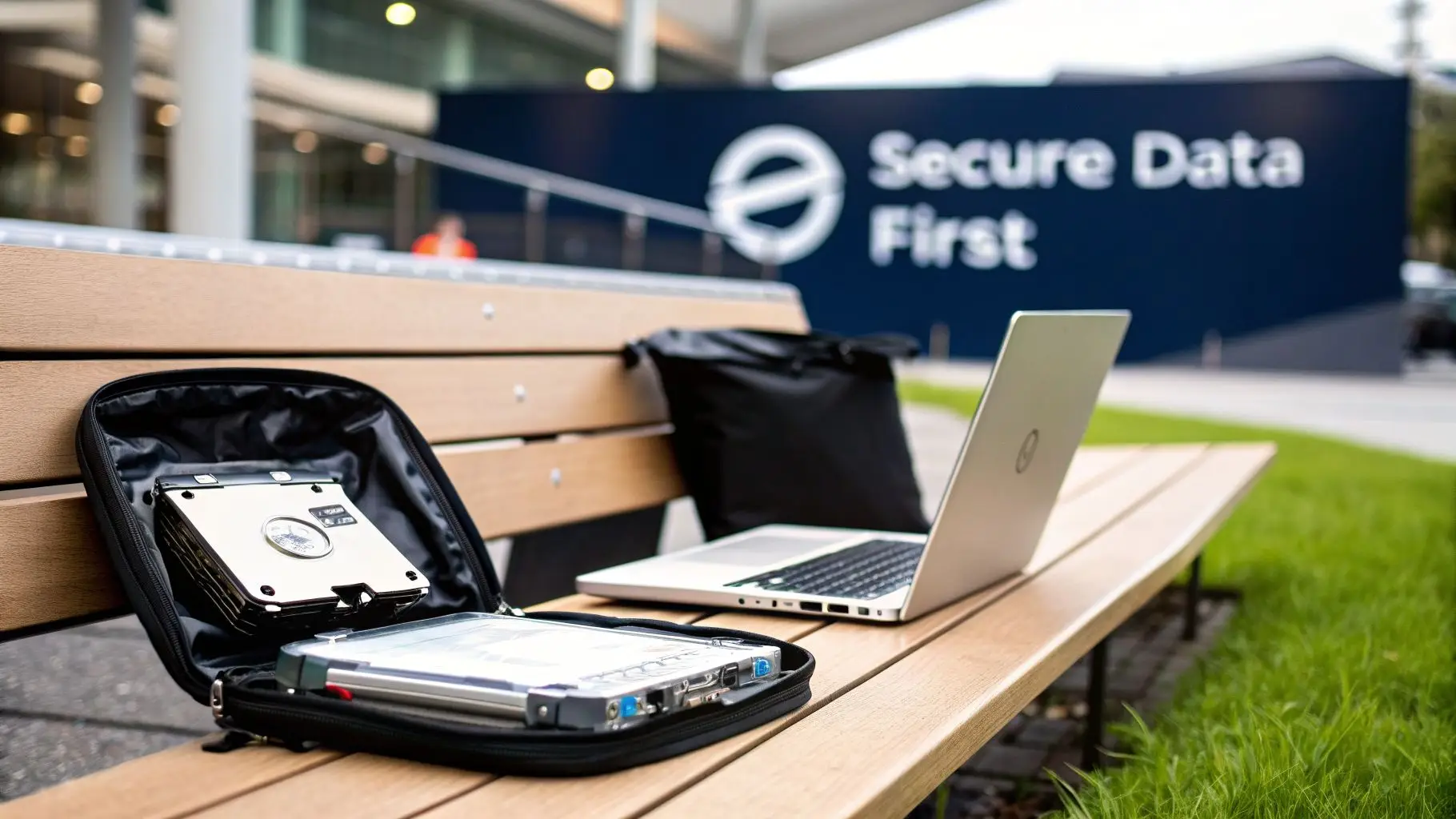
First, safety. The image below lays out the essential setup for any drive removal.
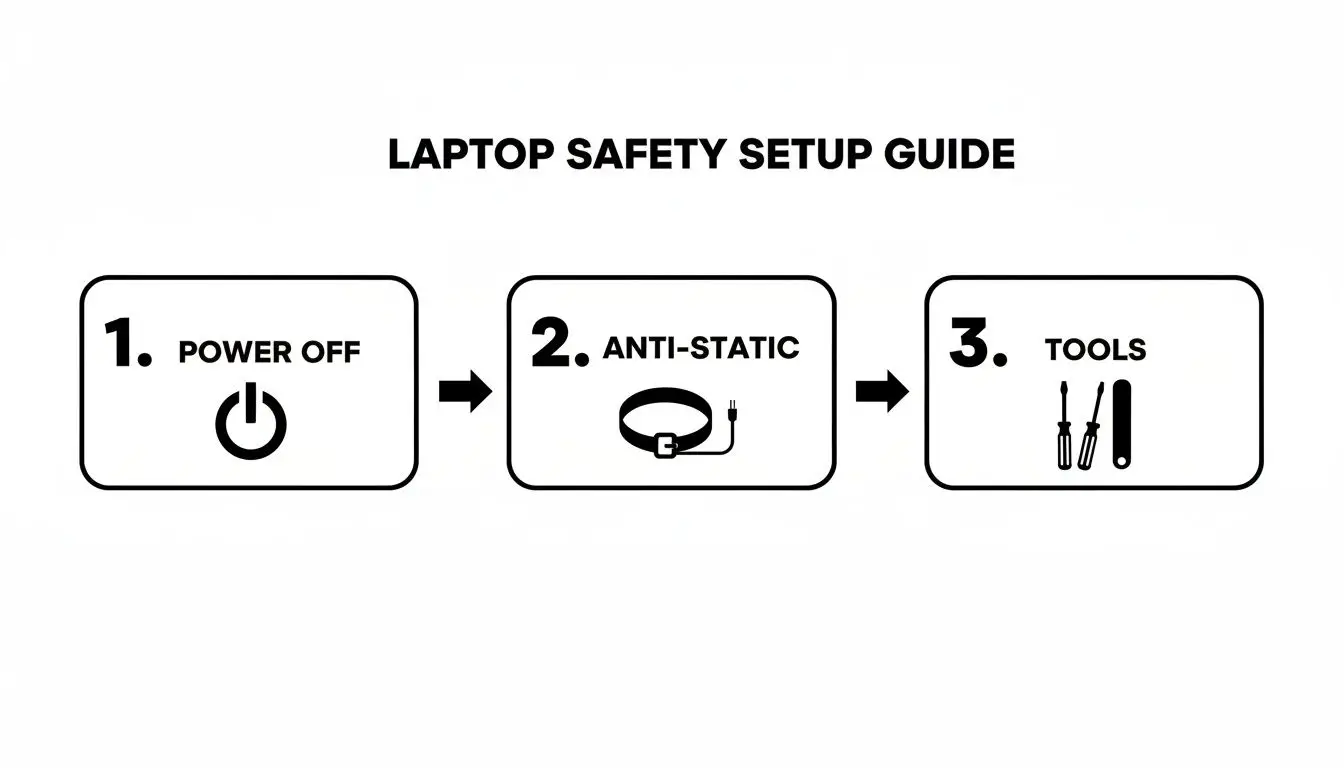
Think of it this way: powering off, grounding yourself against static, and using the right tools aren't just suggestions. They are mandatory, sequential steps for performing this task safely and without damaging valuable company assets.
Accessing Traditional 2.5-inch SATA Drives
The 2.5-inch SATA drive, whether a traditional Hard Disk Drive (HDD) or a Solid-State Drive (SSD), is the workhorse you’ll find in most business laptops manufactured before approximately 2018. These are typically the easiest to access.
Often, these drives reside in their own dedicated compartment, accessible through a small service door on the bottom of the laptop held in place by one or two screws. Once the panel is removed, you'll see the drive sitting in a metal caddy.
That caddy is also secured with screws—usually two to four. Once those are removed, you can gently slide the entire caddy assembly away from the SATA connector to unplug it. A firm, steady pull is all it takes.
A common feature is a small plastic or fabric "pull tab" attached to the caddy. This is designed to give you the leverage needed to safely disconnect the drive without wiggling it, which can damage the port.
With the drive and caddy free, you just have a final set of screws holding the drive in the caddy itself. If the laptop is being repurposed, keep the screws and caddy with the machine. Otherwise, the drive is now fully removed and ready for data destruction. You might be surprised by all the different hard drive connections and types you can find.
Handling Modern M.2 SSDs
As laptops became thinner, the bulky 2.5-inch drive was replaced by the M.2 SSD. These are tiny, "gumstick-sized" circuit boards that plug directly into the motherboard. They offer a huge performance boost but are far more delicate.
Unlike their SATA counterparts, M.2 drives are almost always inside the main body of the laptop. This means you’ll have to remove the entire bottom case, which can be secured by anywhere from 8 to 15 screws of different lengths. A magnetic screw tray is essential here.
Once the bottom case is off and you've disconnected the battery, locating the M.2 drive is simple. It’s a small green or blue circuit board held down at one end by a single tiny screw.
Removing it is straightforward but demands precision:
- Unscrew the single retention screw at the far end of the M.2 drive.
- The drive will immediately pop up at a 20-30 degree angle. This is normal.
- Gently pull the drive out of its slot at that same angle. Do not try to pull it straight up or bend it flat.
The biggest risk here is damaging the M.2 slot on the motherboard. A heavy-handed removal can break the fragile connector pins, potentially requiring a full motherboard replacement if the asset was intended for refurbishment.
Navigating Embedded eMMC Storage
The final category, Embedded MultiMediaCard (eMMC) storage, presents the biggest challenge from a data security and ITAD perspective. You'll find this storage in many budget notebooks, Chromebooks, and some lightweight ultrabooks.
Here’s the most important thing for any IT manager to know: eMMC storage is soldered directly onto the motherboard. It is not a separate, removable component. It looks like any other chip on the board and was never designed to be serviced or removed.
This creates a unique challenge. Since you cannot physically separate the storage from the laptop, the standard process of removing a laptop hard drive is impossible. If a laptop has eMMC storage, the only way to guarantee 100% data destruction is to destroy the entire motherboard.
- Software Wiping: Attempting to wipe eMMC storage with software leaves a margin for error and may not satisfy strict compliance requirements.
- Physical Destruction: For any regulated industry or high-security environment, physically shredding or pulverizing the motherboard is the only foolproof method.
Identifying eMMC can be difficult without opening the device. A good rule of thumb is to check the tech specs. A small storage capacity (like 32GB, 64GB, or 128GB) that isn't explicitly labeled "SSD" or "HDD" likely indicates eMMC. Knowing this ahead of time is vital for planning your ITAD process, as these devices demand a totally different—and more destructive—approach to data security.
Verifying Removal and Planning for Data Destruction
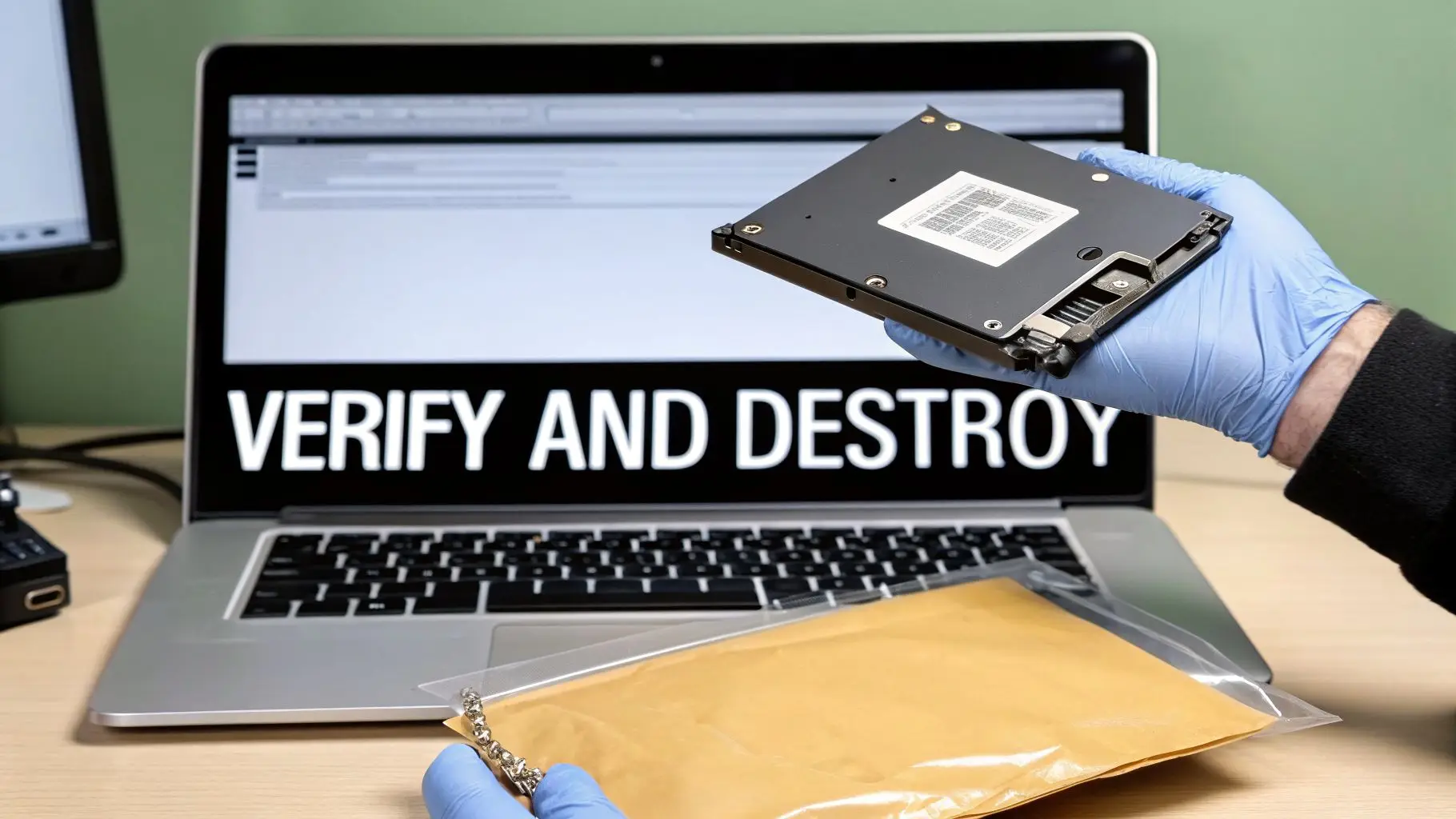
You’ve successfully pulled the drive from the laptop. While the hands-on part is over, the job is only half-finished. The subsequent steps are equally crucial for securing your company’s data and ensuring compliance.
The first action should be to confirm the laptop is truly "clean." Power it back on. You should see an error message like "No bootable device found" or "Operating System not found." This simple check provides immediate verification that the primary data storage is gone, making the asset safe for its next stage—whether reuse, resale, or recycling.
Once verified, place the drive in a labeled anti-static bag immediately. This isn't just for organization; it’s the beginning of a secure chain of custody. Your label should clearly link the drive to its source laptop via serial number or asset tag, ensuring it’s tracked all the way to destruction.
Choosing Your Data Destruction Method: A Business Decision
With the drive safely out and labeled, you must decide how to destroy the data permanently. Simply deleting files or formatting the drive is grossly inadequate for a business setting. Forensic software can recover data from drives treated this way with relative ease.
Your choice of destruction method depends on your industry's compliance needs, internal security policies, and risk tolerance.
You have two primary paths: software-based wiping or physical destruction. Both have a place, but they serve very different purposes in a corporate environment.
Software-Based Wiping: Uses specialized programs to overwrite every sector of the drive with random data, often multiple times. This makes the original information unrecoverable with software tools.
Physical Destruction: The drive is shredded, degaussed, or pulverized until the data is physically impossible to recover.
Let's break down the business case for each.
| Method | Best For | Pros | Cons |
|---|---|---|---|
| Software Wiping | Drives intended for reuse or resale; lower-risk data. | The drive remains functional, preserving its value; can be done on-site. | Time-consuming (hours per drive); less effective on damaged drives or modern SSDs; not considered foolproof for highly sensitive data. |
| Physical Destruction | End-of-life drives; highly sensitive or regulated data; all damaged drives. | Offers 100% certainty that data is gone forever; a very fast process; provides an auditable Certificate of Destruction. | The drive is rendered completely useless and has no resale value; requires specialized industrial machinery. |
The Gold Standard for Business Compliance
For most companies, particularly those in healthcare, finance, or government contracting, physical destruction is the only acceptable method. It delivers a level of certainty that software wiping cannot match. The demand for this definitive approach is growing as data security threats and compliance rules intensify.
The reason is simple. IT and compliance managers are often bound by standards like NIST 800-88, which mandate that data be made completely unrecoverable. Software wiping may not stand up to sophisticated forensic analysis, leaving a potential security gap. You can get a deeper dive into these requirements in our guide to understanding NIST SP 800-88.
The physical destruction methods that meet these strict standards include:
- Shredding: The drive is run through an industrial shredder that chops it into small, indecipherable metal pieces. This is the most common and transparent method.
- Degaussing: A machine generates a powerful magnetic field to erase data from traditional HDDs. Note: this is completely ineffective on SSDs, which are not magnetic.
- Pulverization: The drive is crushed and ground into a fine powder, completely destroying its physical structure and data platters.
Choosing the right certified partner for this final, critical step is what validates your entire data security process. It ensures your data destruction is compliant, irreversible, and documented, effectively closing the loop on that asset's life and transferring liability away from your organization.
When to Call in an ITAD Specialist for Secure Disposition
Removing a single hard drive from a laptop is a manageable task for an IT professional. But what happens when you’re decommissioning hundreds? At that scale, a DIY approach to data destruction quickly becomes a massive logistical, compliance, and security liability for your business. This is where you shift from the "how-to" of hardware removal to the "what's next" of strategic IT asset disposition.
Engaging a certified IT Asset Disposition (ITAD) provider isn't just about outsourcing a task—it's about transferring risk. A professional partner assumes full responsibility for data security and environmental compliance the moment those assets leave your facility. For any IT leader, facility manager, or business owner, that transfer of liability is paramount.
The Business Case for Professional ITAD Services
The single biggest reason to partner with an ITAD specialist is to establish a secure and documented chain of custody. This is a formal, auditable trail that follows every single hard drive from your office to its final destruction. It's a process built on secure logistics, controlled access, and constant verification.
When a pallet of laptops is picked up, each asset is scanned and inventoried. The drives are then transported in secure, GPS-tracked vehicles to a controlled-access facility. The entire process is designed to eliminate any room for error, loss, or theft.
You can get a better idea of what to look for by reviewing a vendor due diligence checklist, which is essential when vetting potential ITAD partners.
The Importance of the Certificate of Data Destruction
At the end of the process, you receive a Certificate of Data Destruction. This document is more than a piece of paper; it’s your legal proof that you have met your data security obligations. For any compliance audit under regulations like HIPAA, SOX, or GDPR, this certificate is non-negotiable.
It lists the serial number of every drive that was destroyed, the exact method used (e.g., shredding to a specific size), and the date of destruction. This documentation serves as your defense in the event of a data breach investigation.
Partnering with a certified ITAD vendor turns data destruction from a logistical headache into a documented, risk-reduction strategy. It frees your team to focus on core business operations, knowing your end-of-life data is being handled to the highest security and compliance standards.
Unlocking Value from Retired IT Assets
ITAD isn't just an expense. A strong partner can also help you recover financial value from your retired equipment. While the hard drives are destined for the shredder, the laptops themselves might still be valuable.
A qualified ITAD provider can:
- Test and grade remaining components: RAM, CPUs, and screens may have resale value.
- Refurbish and resell whole assets: Functional laptops can be sanitized, repaired, and sold on secondary markets.
- Ensure e-waste compliance: For assets with no remaining value, the provider guarantees they are recycled in accordance with all local, state, and federal environmental laws.
This process can turn a potential cost into a revenue stream, often offsetting the service fees. The intense focus on professional data security is a direct response to a growing market need. Projections show the Hard Drive Destruction Service Market will hit USD 2.5 billion by 2026, driven by the explosion of e-waste and strict regulations like GDPR. You can learn more about this trend from this global hard disk market research.
Ultimately, working with an ITAD specialist is a strategic business decision. It provides a secure, compliant, and often profitable method for managing the end-of-life of your company's technology, ensuring that removing a laptop hard drive is just the first step in a completely secure and documented process.
Your Top Questions About Drive Removal and Disposal
Even with a solid plan, questions arise when dealing with hundreds of corporate laptops. Here are answers to common concerns from IT managers and procurement professionals about removing and disposing of laptop hard drives.
Should Our Employees Handle Drive Removal?
This is a common question, and the answer hinges on your team's capacity, expertise, and your company's risk tolerance. For a handful of devices, having an in-house IT professional pull the drives might seem efficient.
But at scale, variables introduce risk. Is your team familiar with every laptop model in your inventory? Do they have the proper tools to prevent electrostatic discharge (ESD) that can damage components and reduce remarketing value?
The biggest question is accountability. Who is responsible if a drive is misplaced or damaged before destruction? For most businesses, especially those in regulated industries like healthcare or finance, using a certified ITAD specialist for the entire chain of custody is the safer, more defensible route. It establishes a documented, insured, and consistent process from removal to destruction, transferring the risk off your organization.
What Really Happens to a Shredded Drive?
Professional hard drive shredding is not just breaking it into a few pieces. The drive is fed into an industrial shredder that grinds it into tiny, mangled fragments, often smaller than a quarter.
This process completely obliterates the platters in a traditional HDD or the NAND flash chips on an SSD. The fragments of the storage media are co-mingled with the shredded metal and plastic from the casing.
At this point, recovering data is physically impossible. The shredded material is then sent to a certified downstream recycling partner to be smelted down, recovering the raw materials for reuse and ensuring nothing ends up in a landfill.
The real value of shredding lies in its finality. Unlike software wiping, which only alters data, shredding completely eliminates the physical media it was stored on. There is no "undo."
How Do Different Data Destruction Standards Compare?
You will often hear acronyms like NIST 800-88 and DoD 5220.22-M, and it's critical to know they are not interchangeable.
- DoD 5220.22-M: This is an older standard focused on software-based overwriting. It defines a process for writing patterns over a drive multiple times. While once a standard, it is now considered outdated, especially for modern SSDs where its effectiveness is questionable.
- NIST Special Publication 800-88: This is the current gold standard for media sanitization in the United States. It outlines a risk-based approach with three methods: Clear, Purge, and Destroy. "Destroy" refers to physical destruction—shredding, pulverizing, or incineration—and is the only method NIST guarantees will make data recovery impossible.
For any business that must prove compliance and eliminate all data-breach risk, following the "Destroy" method under NIST 800-88 guidelines is the only truly bulletproof strategy. It ensures your data destruction is defensible, meets the highest modern security standards, and is verified by your ITAD partner.
Ensure your IT asset disposal strategy is secure, compliant, and documented from start to finish. For certified electronics recycling and secure data destruction services for businesses, contact Beyond Surplus. Learn more about how we protect your organization at https://sonitechllc.com.